AireEngine
A 3D Open-World Game Engine
Loading...
Searching...
No Matches
COMP5530M: Group Project

This is our repository for the 2023/2024 COMP5530M: Group Project. On this module, we develop our own game engine.

  • Supported Platforms: Windows 10, 11
  • Graphics API: OpenGL 4.5.0

Our Team:

  • Asen Markov, sc20a2m
  • Christian Pustianu, sc20ccp
  • Jiayi Yao, sc23jy
  • Longfei Yu, sc23ly
  • Thomas Jackson, sc23tj
  • Wojciech Rak, sc23wsr
  • Yuanzhi Lin, sc23y2l

Installation

Cloning the Repository

Run the following command to clone the repository:

git clone https://gitlab.com/Ganron/comp5530m-group-project.git

Navigate to the project directory:

cd comp5530m-group-project

Run Premake to generate Visual Studio 2022 project files:

premake5 vs2022

Running the engine

After you have successfully set up the project using premake, you can run the engine with these steps:

Open the Project in Visual Studio

  1. Navigate to the Project Directory: Locate the directory where the project is stored.
  2. Open the Solution: Double-click on ArieEngine.sln to open the project in Visual Studio 2022. This file should have been generated by premake in the ****Installation**** section.

Build and Run the Project

  1. Select the Build Configuration: In Visual Studio, set the build configuration to 'Debug' mode. This can be done by going to the toolbar at the top, finding the solution configurations dropdown, and selecting 'Debug'.
  2. Build the Project: Before running, ensure the project is up to date by building it. Go to Build -> Build Solution or press Ctrl+Shift+B to compile the project.
  3. Run the Engine: After the build is complete, run the engine by selecting Debug -> Start Without Debugging or pressing Ctrl+F5.

By following these steps, you should be able to successfully run and test the engine directly from Visual Studio.

Screenshots

Here are the screenshots of our game engine demo:
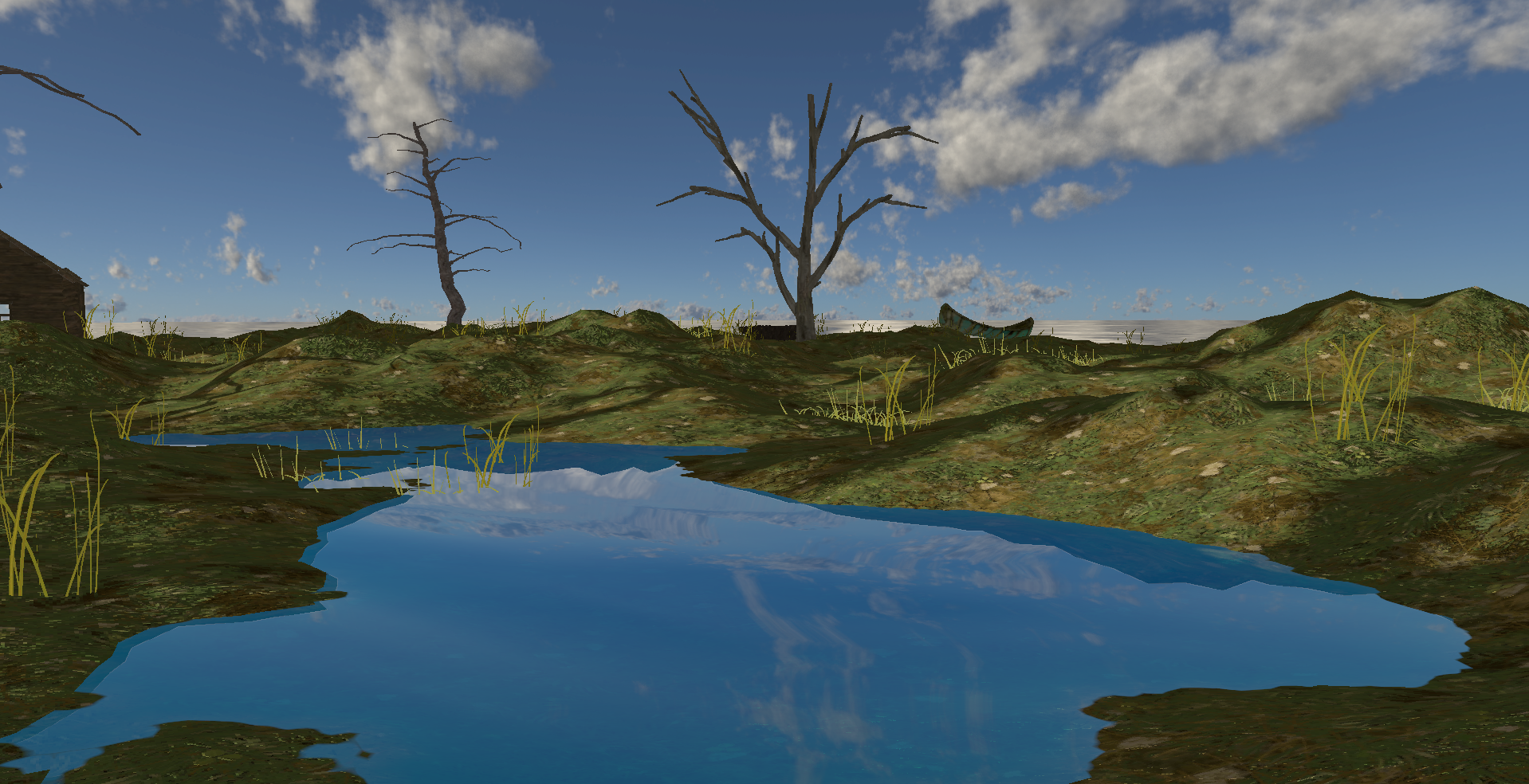
  • Static environment with water, terrain, and billboard
    Static environment
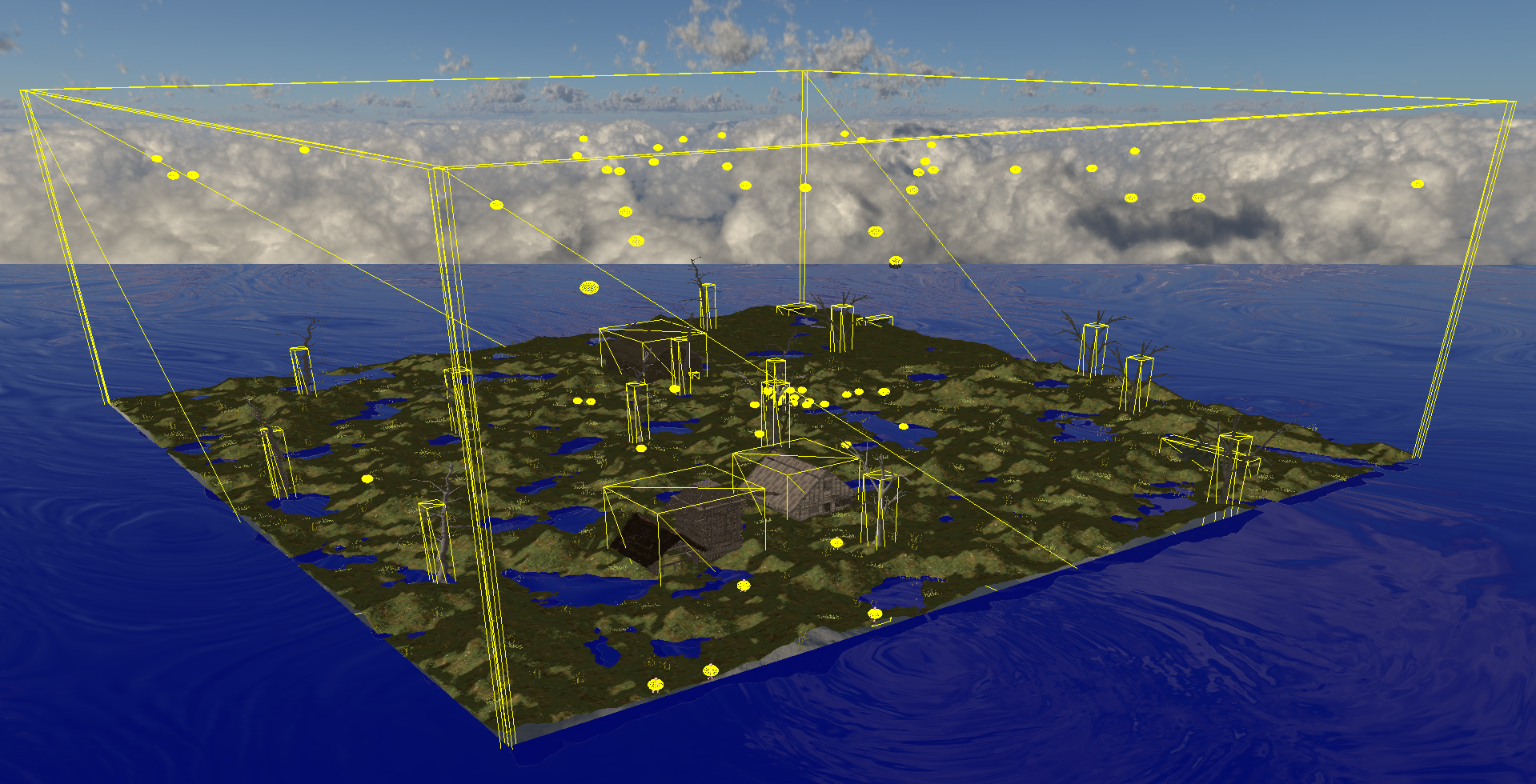
  • Debug mode
    Debug mode
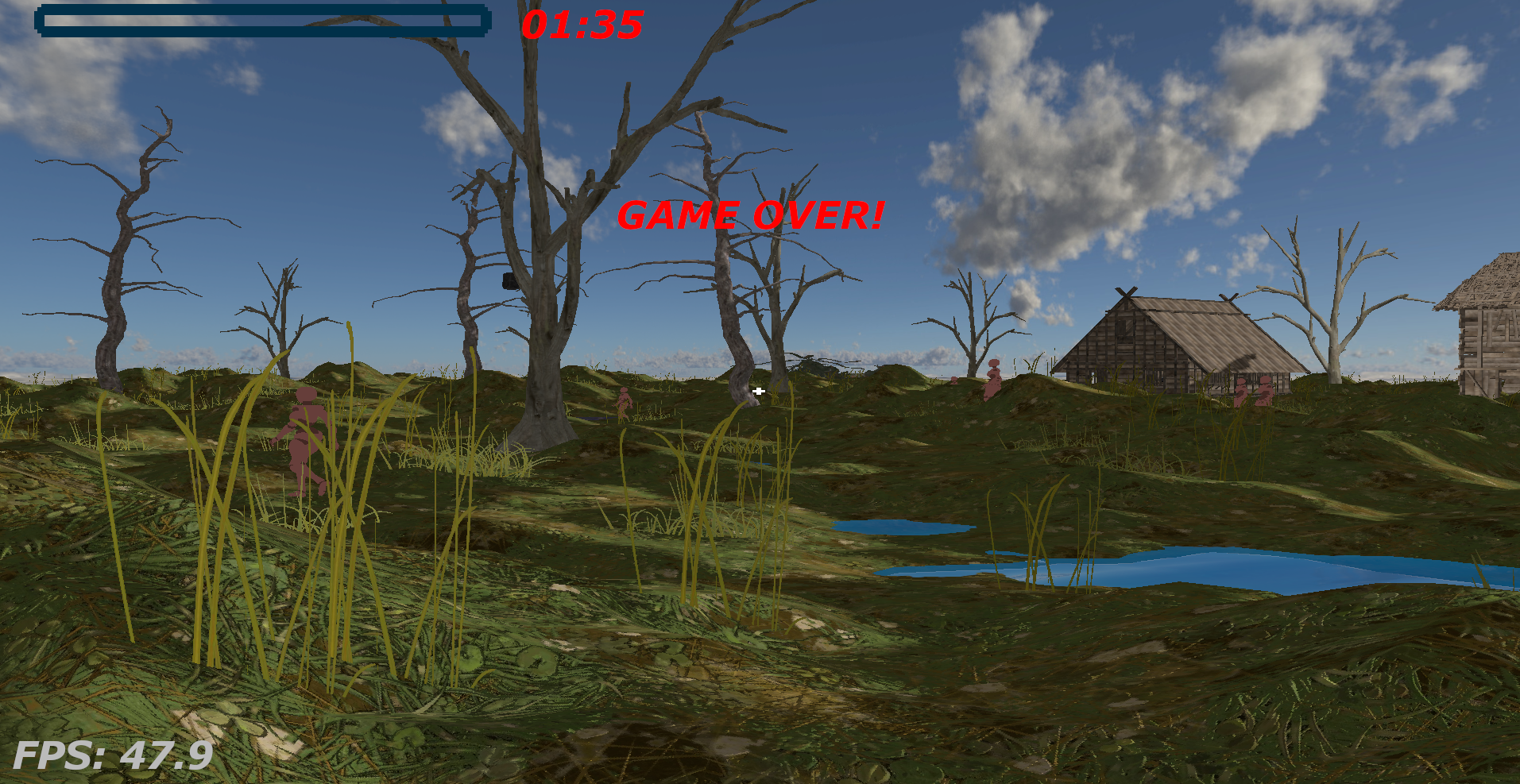
  • HUD and event
    HUD
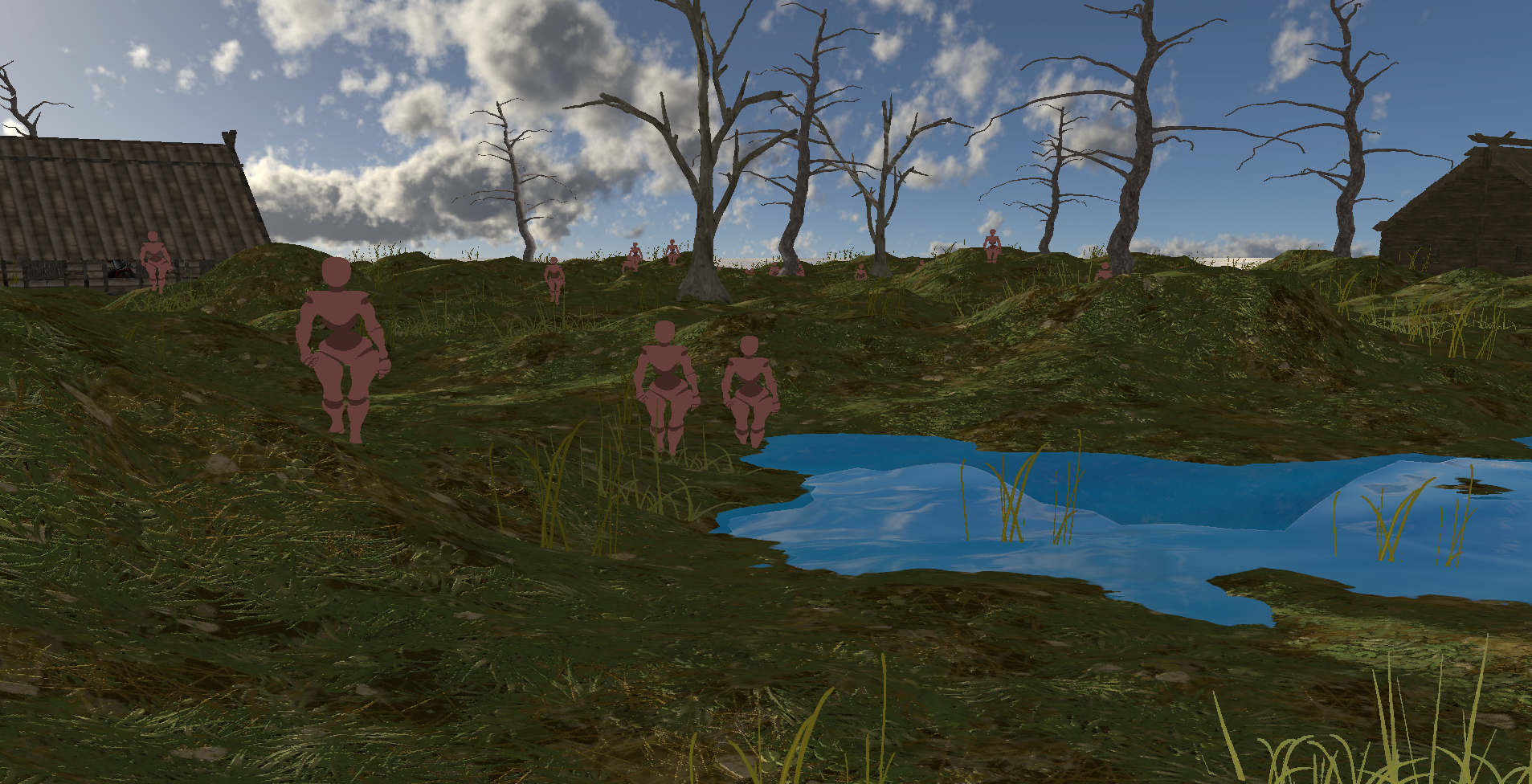
  • Model
    Model

Acknowledgements

With logo inspiration from https://www.pngfind.com/